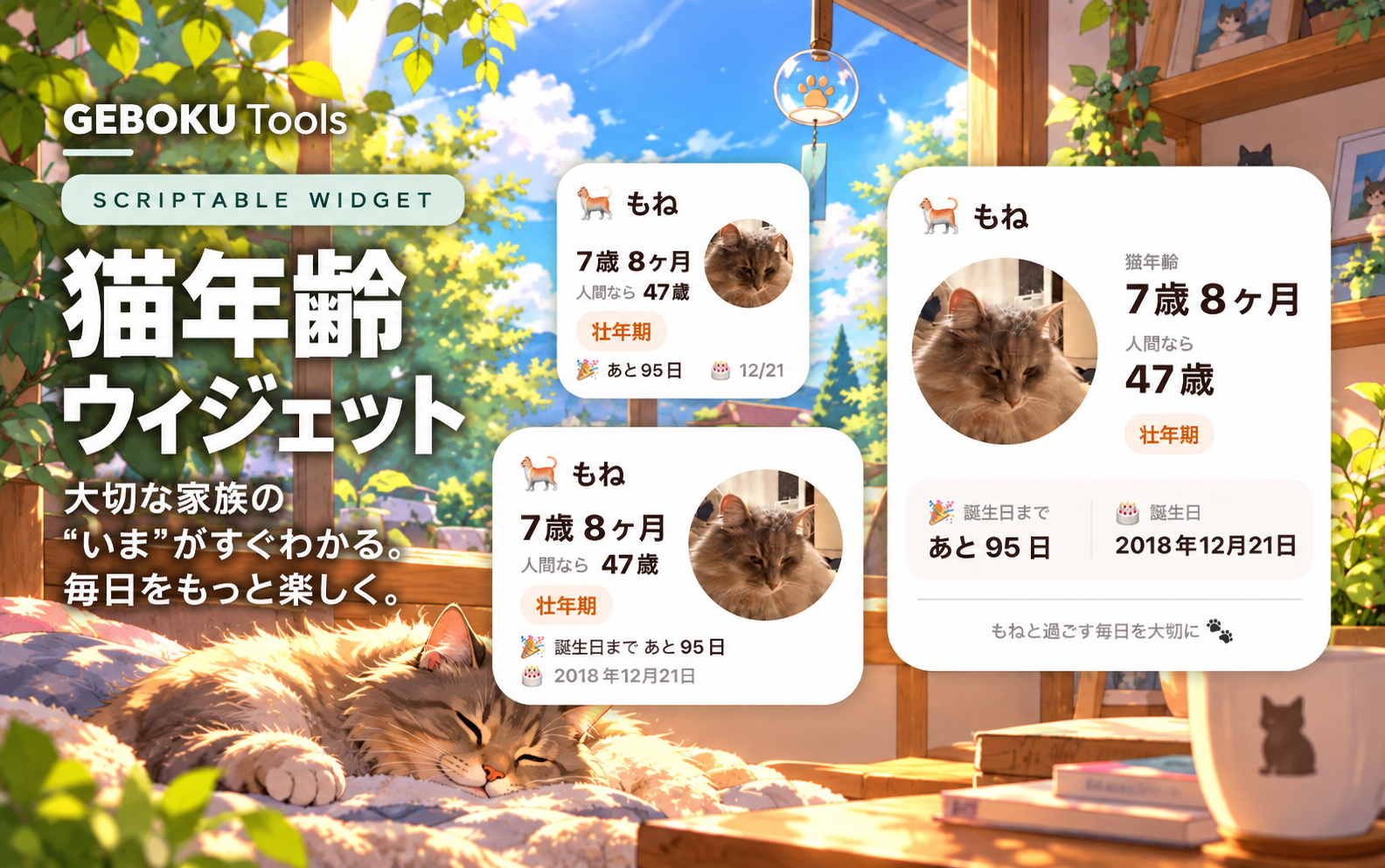
猫年齢ウィジェットは、愛猫の年齢、人間に換算した年齢、次の誕生日までの日数をiPhoneのホーム画面で確認できるScriptable用ウィジェットです。生年月日と名前を設定すると、その日の年齢を自動で計算します。お気に入りの写真を添えて、愛猫専用の表示にできます。
「人間でいうたら今何歳ぐらいなんやろ?」と気になるたびに調べるのが少し面倒で、そのためだけに専用アプリを入れるのも大げさに感じていました。サブスクや広告を気にせず、生年月日や今の年齢を必要なときにパッと見られればいい。そんな理由から作ったウィジェットです。
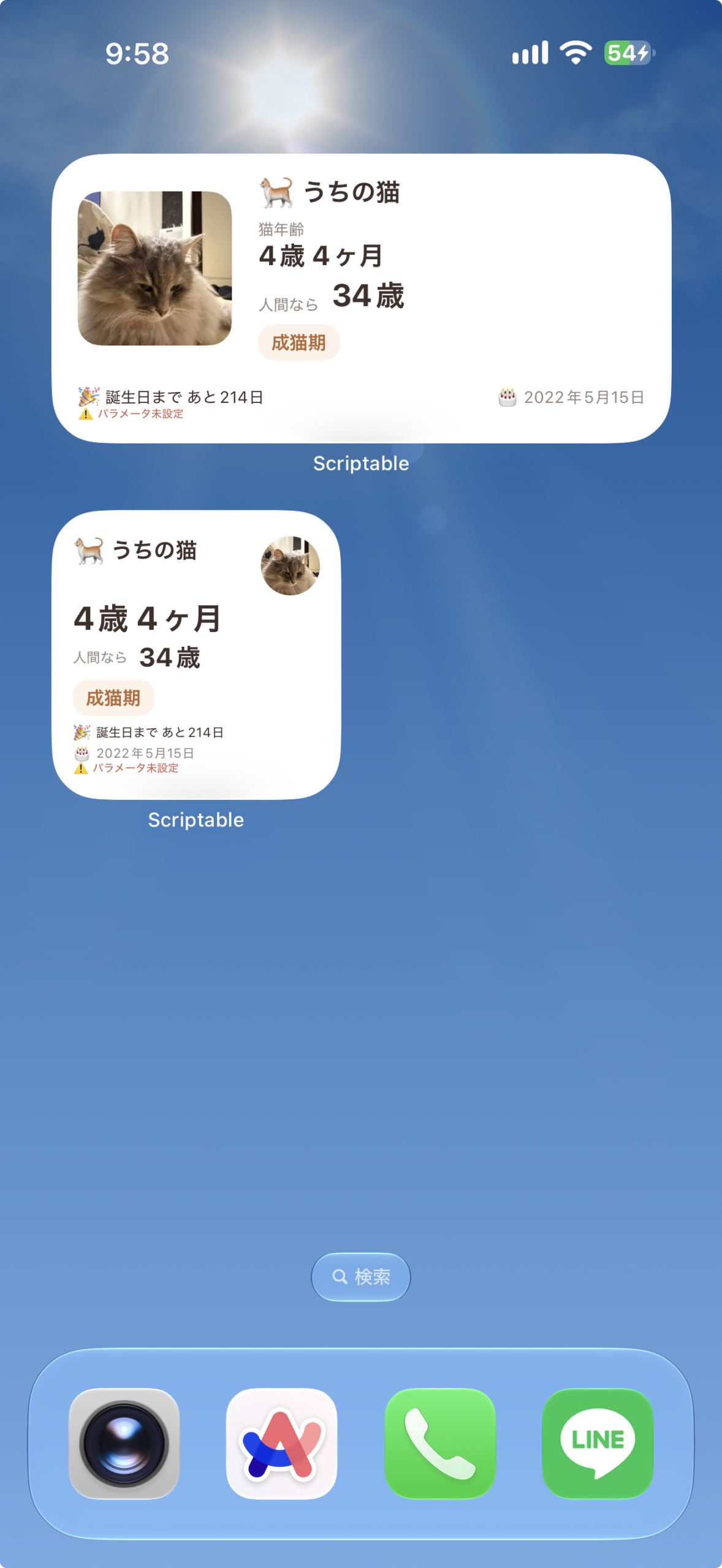
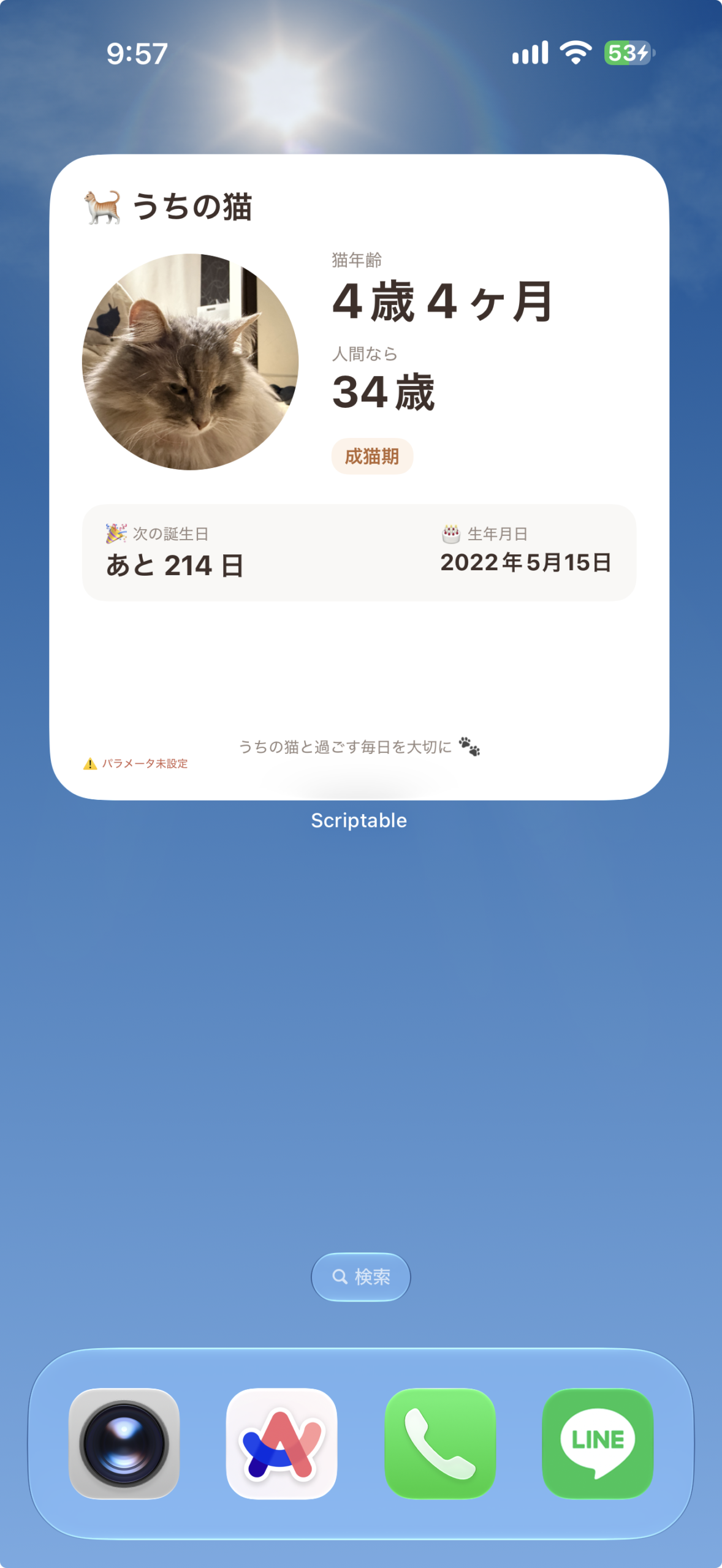
下の画像は、実際にiPhoneのホーム画面で使っている様子です。左は小・中サイズ、右は大サイズ。画像をタップすると拡大できます。
ウィジェットの表示内容
- 名前と生年月日から「○歳○ヶ月」を表示
- 人間に換算した年齢と、コード内で区分したライフステージを表示
- 次の誕生日までの日数と、生年月日を表示
- 愛猫の写真を登録・変更(写真なしでも使用可能)
- 小・中・大サイズに合わせて写真と情報の配置を切り替え
- 同じスクリプトを使い、猫ごとに名前・生年月日を変えて複数配置
サイズごとの表示
表示する情報は、小・中・大の全サイズで共通です。情報が増えるのではなく、写真の大きさと読みやすさ、配置が変わります。写真なしでも使えます。
設定手順
上から順に進めてください。まずコードをScriptableに保存し、このページに戻って猫の設定を作ります。必要なコピー欄は、それぞれの手順の中にあります。
- Scriptableを用意する
App StoreでScriptableを開き、iPhoneにインストールします。すでに入っている場合は、次へ進んでください。
- コードをコピーして保存する
下のコード欄の「コピー」を押し、Scriptableへ移動します。「+」から新しいスクリプトを作り、コード全文を貼り付けて「猫年齢ウィジェット」などの名前で保存してください。
保存できたら、このページに戻って次の「猫の設定を作る」へ進みます。この時点では実行や写真登録は不要です。
// Version: 1.1.0 // ===================================================== // 猫の年齢ウィジェット - Scriptable 完成版 // // ウィジェットパラメータ: // 生年月日,名前 // // 例: // 2018-12-21,もね // // 写真設定: // ウィジェットをタップ(またはScriptableで直接実行) // →「写真を設定・変更」 // → ウィジェットと同じ猫の名前を入力 // → 写真を選択 // // 小:右上に丸い写真 // 中:左に角丸写真+右に情報 // 大:大きめ写真+ゆったり情報 // ===================================================== // ===================================================== // 基本設定 // ===================================================== const DEFAULT_BIRTHDAY = "2022-05-15"; const DEFAULT_NAME = "うちの猫"; // ===================================================== // カラー // ===================================================== const COLOR = { background: new Color("#FFFFFF"), text: new Color("#3F302A"), sub: new Color("#95877F"), accent: new Color("#B56735"), pale: new Color("#FFF3E9"), line: new Color("#EEE8E4"), warning: new Color("#C85B45") }; // ===================================================== // FileManager // ===================================================== const fm = FileManager.iCloud(); const photoDir = fm.joinPath( fm.documentsDirectory(), "cat_age_widget" ); if (!fm.fileExists(photoDir)) { fm.createDirectory(photoDir); } // ===================================================== // 共通関数 // ===================================================== function slugify(name) { return name .trim() .replace(/[^a-zA-Z0-9ぁ-んァ-ン一-龥]/g, "_"); } function getPhotoPath(name) { return fm.joinPath( photoDir, `photo_${slugify(name)}.jpg` ); } function parseDate(str) { const d = new Date(str + "T00:00:00"); return isNaN(d.getTime()) ? new Date(DEFAULT_BIRTHDAY + "T00:00:00") : d; } // ===================================================== // アプリ内で直接実行した場合 // ===================================================== const tapParameters = args.queryParameters || {}; const openedFromWidget = tapParameters.catPhoto === "1"; const tappedCatName = typeof tapParameters.catName === "string" ? tapParameters.catName.trim() : ""; let choice = -1; if (!config.runsInWidget) { const menu = new Alert(); menu.title = openedFromWidget ? "写真の設定" : "猫の年齢ウィジェット"; menu.message = openedFromWidget && tappedCatName ? `「${tappedCatName}」の写真を設定・変更、削除できます。` : "写真の設定やプレビューができます。"; menu.addAction("写真を設定・変更"); menu.addDestructiveAction("写真を削除"); menu.addAction("小サイズをプレビュー"); menu.addAction("中サイズをプレビュー"); menu.addAction("大サイズをプレビュー"); menu.addCancelAction("終了"); choice = await menu.presentAlert(); // --------------------------------------------------- // 写真設定 // --------------------------------------------------- if (choice === 0) { const input = new Alert(); input.title = "猫の名前"; input.message = "ウィジェットのパラメータと同じ猫の名前を入力してください。"; input.addTextField("例:もね", tappedCatName); input.addAction("写真を選ぶ"); input.addCancelAction("キャンセル"); const result = await input.presentAlert(); if (result === -1) { Script.complete(); return; } const name = input.textFieldValue(0).trim(); if (!name) { Script.complete(); return; } try { const image = await Photos.fromLibrary(); const path = getPhotoPath(name); fm.writeImage(path, image); const done = new Alert(); done.title = " 写真を保存しました"; done.message = `「${name}」の写真を設定しました。`; done.addAction("OK"); await done.presentAlert(); } catch (e) { console.log("写真設定エラー:" + e); } Script.complete(); return; } // --------------------------------------------------- // 写真削除 // --------------------------------------------------- if (choice === 1) { const input = new Alert(); input.title = "写真を削除"; input.message = "猫の名前を入力してください。"; input.addTextField("例:もね", tappedCatName); input.addDestructiveAction("削除"); input.addCancelAction("キャンセル"); const result = await input.presentAlert(); if (result === -1) { Script.complete(); return; } const name = input.textFieldValue(0).trim(); if (!name) { Script.complete(); return; } const path = getPhotoPath(name); const alert = new Alert(); if (fm.fileExists(path)) { fm.remove(path); alert.title = "削除しました"; alert.message = `「${name}」の写真を削除しました。`; } else { alert.title = "写真がありません"; alert.message = `「${name}」の写真は保存されていません。`; } alert.addAction("OK"); await alert.presentAlert(); Script.complete(); return; } if (choice === -1) { Script.complete(); return; } } // ===================================================== // パラメータ // ===================================================== const rawParam = typeof args !== "undefined" && args.widgetParameter ? args.widgetParameter : ""; const parts = rawParam .split(",") .map(s => s.trim()); const hasParam = !!(parts[0] && parts[0].length > 0); const birthDateStr = hasParam ? parts[0] : DEFAULT_BIRTHDAY; const catName = parts[1] || DEFAULT_NAME; // ===================================================== // 日付・年齢 // ===================================================== const birth = parseDate(birthDateStr); const now = new Date(); function calcAge(birth, now) { let years = now.getFullYear() - birth.getFullYear(); let months = now.getMonth() - birth.getMonth(); let days = now.getDate() - birth.getDate(); if (days < 0) { months--; } if (months < 0) { years--; months += 12; } if (years < 0) { years = 0; months = 0; } return { years, months }; } const { years: catYears, months: catMonths } = calcAge(birth, now); const totalDays = Math.max( 0, (now - birth) / 86400000 ); const ageFloat = totalDays / 365.25; // ===================================================== // 人間年齢 // ===================================================== function toHumanAge(age) { if (age <= 0) { return 0; } if (age < 1) { return Math.round(15 * age); } if (age < 2) { return Math.round( 15 + 9 * (age - 1) ); } return Math.round( 24 + 4 * (age - 2) ); } const humanAge = toHumanAge(ageFloat); // ===================================================== // ライフステージ // ===================================================== function getCatStage(age) { if (age < 1) { return { label: "子猫期" }; } if (age < 3) { return { label: "青年期" }; } if (age < 7) { return { label: "成猫期" }; } if (age < 11) { return { label: "壮年期" }; } if (age < 15) { return { label: "中年期" }; } return { label: "老猫期" }; } const stage = getCatStage(ageFloat); // ===================================================== // 表示用 // ===================================================== const bdf = new DateFormatter(); bdf.dateFormat = "yyyy年M月d日"; const birthDisplay = bdf.string(birth); const catAgeLabel = catMonths > 0 ? `${catYears}歳 ${catMonths}ヶ月` : `${catYears}歳`; // ===================================================== // 次の誕生日 // ===================================================== function daysUntilNextBirthday(birth, now) { const today = new Date( now.getFullYear(), now.getMonth(), now.getDate() ); let next = new Date( now.getFullYear(), birth.getMonth(), birth.getDate() ); if (next < today) { next = new Date( now.getFullYear() + 1, birth.getMonth(), birth.getDate() ); } return Math.round( (next - today) / 86400000 ); } const daysToBirthday = daysUntilNextBirthday( birth, now ); const birthdayText = daysToBirthday === 0 ? "今日は誕生日!" : `あと${daysToBirthday}日`; // ===================================================== // 写真読み込み // ===================================================== async function loadPhoto(name) { const path = getPhotoPath(name); if (!fm.fileExists(path)) { return null; } try { await fm.downloadFileFromiCloud(path); return fm.readImage(path); } catch (e) { console.log( "写真読み込みエラー:" + e ); return null; } } const photoImage = await loadPhoto(catName); const hasPhoto = photoImage !== null; // ===================================================== // ウィジェット // ===================================================== const widget = new ListWidget(); widget.backgroundColor = COLOR.background; // タップした猫の名前を写真設定へ渡す(複数の猫にも対応)。 const runURL = URLScheme.forRunningScript(); widget.url = runURL + (runURL.includes("?") ? "&" : "?") + "catPhoto=1&catName=" + encodeURIComponent(catName); // ===================================================== // サイズ判定 // ===================================================== let family = config.widgetFamily || "medium"; if (!config.runsInWidget) { if (choice === 2) { family = "small"; } if (choice === 3) { family = "medium"; } if (choice === 4) { family = "large"; } } // ===================================================== // 共通パーツ // ===================================================== function addLabel(stack, text, size = 10) { const t = stack.addText(text); t.font = Font.systemFont(size); t.textColor = COLOR.sub; return t; } function addValue(stack, text, size = 24) { const t = stack.addText(text); t.font = Font.boldSystemFont(size); t.textColor = COLOR.text; t.minimumScaleFactor = 0.7; return t; } function addStageBadge(stack) { const badge = stack.addStack(); badge.backgroundColor = COLOR.pale; badge.cornerRadius = 10; badge.setPadding( 4, 8, 4, 8 ); const text = badge.addText(stage.label); text.font = Font.boldSystemFont(12); text.textColor = COLOR.accent; return badge; } function addPhoto( stack, size, circle = false ) { if (!hasPhoto) { return; } const image = stack.addImage(photoImage); image.imageSize = new Size(size, size); image.cornerRadius = circle ? size / 2 : 14; image.applyFillingContentMode(); } // ===================================================== // SMALL // ===================================================== function buildSmall() { widget.setPadding( 10, 13, 9, 13 ); // --------------------------------------------------- // 名前 + 写真 // --------------------------------------------------- const header = widget.addStack(); header.layoutHorizontally(); header.topAlignContent(); const name = header.addText( ` ${catName}` ); name.font = Font.boldSystemFont(14); name.textColor = COLOR.text; name.lineLimit = 1; header.addSpacer(); if (hasPhoto) { const photoStack = header.addStack(); addPhoto( photoStack, 36, true ); } widget.addSpacer(2); // --------------------------------------------------- // 猫の年齢 // --------------------------------------------------- const age = widget.addText( catAgeLabel ); age.font = Font.boldSystemFont(20); age.textColor = COLOR.text; age.minimumScaleFactor = 0.7; age.lineLimit = 1; widget.addSpacer(2); // --------------------------------------------------- // 人間年齢 // --------------------------------------------------- const humanRow = widget.addStack(); humanRow.layoutHorizontally(); // 上下中央揃え humanRow.centerAlignContent(); const humanLabel = humanRow.addText( "人間なら" ); humanLabel.font = Font.systemFont(9); humanLabel.textColor = COLOR.sub; humanRow.addSpacer(6); const human = humanRow.addText( `${humanAge}歳` ); human.font = Font.boldSystemFont(16); human.textColor = COLOR.text; widget.addSpacer(4); // --------------------------------------------------- // ライフステージ // --------------------------------------------------- addStageBadge(widget); widget.addSpacer(5); // --------------------------------------------------- // 誕生日まで // --------------------------------------------------- const birthday = widget.addText( ` 誕生日まで ${birthdayText}` ); birthday.font = Font.systemFont(8); birthday.textColor = COLOR.text; birthday.minimumScaleFactor = 0.7; birthday.lineLimit = 1; widget.addSpacer(3); // --------------------------------------------------- // 生年月日 // --------------------------------------------------- const born = widget.addText( ` ${birthDisplay}` ); born.font = Font.systemFont(8); born.textColor = COLOR.sub; born.minimumScaleFactor = 0.7; born.lineLimit = 1; } // ===================================================== // MEDIUM // ===================================================== function buildMedium() { widget.setPadding( 14, 16, 14, 16 ); const main = widget.addStack(); main.layoutHorizontally(); main.centerAlignContent(); // --------------------------------------------------- // 左:写真 // --------------------------------------------------- if (hasPhoto) { const photoArea = main.addStack(); photoArea.layoutVertically(); photoArea.centerAlignContent(); addPhoto( photoArea, 94, false ); main.addSpacer(16); } // --------------------------------------------------- // 右:情報 // --------------------------------------------------- const info = main.addStack(); info.layoutVertically(); const name = info.addText( ` ${catName}` ); name.font = Font.boldSystemFont(16); name.textColor = COLOR.text; info.addSpacer(7); addLabel( info, "猫年齢", 10 ); addValue( info, catAgeLabel, 24 ); info.addSpacer(3); const humanRow = info.addStack(); humanRow.layoutHorizontally(); humanRow.bottomAlignContent(); const hLabel = humanRow.addText( "人間なら" ); hLabel.font = Font.systemFont(10); hLabel.textColor = COLOR.sub; humanRow.addSpacer(7); const hValue = humanRow.addText( `${humanAge}歳` ); hValue.font = Font.boldSystemFont(19); hValue.textColor = COLOR.text; info.addSpacer(6); addStageBadge(info); widget.addSpacer(); // --------------------------------------------------- // 下部情報 // --------------------------------------------------- const divider = widget.addStack(); divider.size = new Size(0, 1); divider.backgroundColor = COLOR.line; widget.addSpacer(7); const footer = widget.addStack(); footer.layoutHorizontally(); footer.centerAlignContent(); const countdown = footer.addText( ` 誕生日まで ${birthdayText}` ); countdown.font = Font.systemFont(10); countdown.textColor = COLOR.text; footer.addSpacer(); const born = footer.addText( ` ${birthDisplay}` ); born.font = Font.systemFont(10); born.textColor = COLOR.sub; } // ===================================================== // LARGE // ===================================================== function buildLarge() { widget.setPadding( 20, 20, 18, 20 ); const name = widget.addText( ` ${catName}` ); name.font = Font.boldSystemFont(20); name.textColor = COLOR.text; widget.addSpacer(14); // --------------------------------------------------- // メイン // --------------------------------------------------- const main = widget.addStack(); main.layoutHorizontally(); main.centerAlignContent(); if (hasPhoto) { const photoArea = main.addStack(); addPhoto( photoArea, 132, true ); main.addSpacer(20); } const info = main.addStack(); info.layoutVertically(); addLabel( info, "猫年齢", 11 ); addValue( info, catAgeLabel, 30 ); info.addSpacer(8); addLabel( info, "人間なら", 11 ); addValue( info, `${humanAge}歳`, 27 ); info.addSpacer(12); addStageBadge(info); widget.addSpacer(18); // --------------------------------------------------- // 誕生日カード // --------------------------------------------------- const birthdayCard = widget.addStack(); birthdayCard.layoutHorizontally(); birthdayCard.backgroundColor = new Color("#FAF8F6"); birthdayCard.cornerRadius = 14; birthdayCard.setPadding( 12, 14, 12, 14 ); const countdownBox = birthdayCard.addStack(); countdownBox.layoutVertically(); addLabel( countdownBox, " 次の誕生日", 10 ); countdownBox.addSpacer(3); const countdown = countdownBox.addText( daysToBirthday === 0 ? "今日!" : `あと ${daysToBirthday} 日` ); countdown.font = Font.boldSystemFont(17); countdown.textColor = COLOR.text; birthdayCard.addSpacer(); const birthBox = birthdayCard.addStack(); birthBox.layoutVertically(); addLabel( birthBox, " 生年月日", 10 ); birthBox.addSpacer(3); const born = birthBox.addText( birthDisplay ); born.font = Font.boldSystemFont(14); born.textColor = COLOR.text; widget.addSpacer(); // --------------------------------------------------- // ライフステージ補足 // --------------------------------------------------- const footer = widget.addText( `${catName}と過ごす毎日を大切に ` ); footer.font = Font.systemFont(10); footer.textColor = COLOR.sub; footer.centerAlignText(); } // ===================================================== // サイズごとに作成 // ===================================================== if (family === "small") { buildSmall(); } else if (family === "large") { buildLarge(); } else { buildMedium(); } // ===================================================== // パラメータ未設定 // ===================================================== if (!hasParam) { const hint = widget.addText( " パラメータ未設定" ); hint.font = Font.systemFont(7); hint.textColor = COLOR.warning; } // ===================================================== // 表示 // ===================================================== if (config.runsInWidget) { Script.setWidget(widget); } else { if (family === "small") { await widget.presentSmall(); } else if (family === "large") { await widget.presentLarge(); } else { await widget.presentMedium(); } } Script.complete(); - 猫の設定を作る
下のフォームに猫の名前と生年月日を入力し、「パラメーターをコピー」を押します。この値は、次の手順でホーム画面の「Parameter」に貼り付けます。
コードを貼り付ける欄とは別です。コピーしたら、iPhoneのホーム画面へ移動してください。
猫の設定・パラメーター作成
猫の名前と生年月日を入力すると、ウィジェット用のパラメーターを自動で作成します。
生成されたパラメーター - ホーム画面に貼り付ける
ホーム画面を長押しし、ウィジェット追加画面からScriptableを選び、小・中・大の好きなサイズを追加します。
追加したウィジェットを長押しして「ウィジェットを編集」を開きます。「Script」に手順2で保存したスクリプトを選び、「Parameter」に手順3でコピーした値を貼り付けます。
編集画面を閉じ、猫の名前と生年月日が合っていれば、基本の設定は完了です。別の猫を追加するときも、同じScriptを選び、Parameterだけをその猫の値に変えます。
- 写真を登録する(任意)
写真も表示したい場合は、Scriptableで保存したスクリプトを直接実行し、「写真を設定・変更」を選びます。手順3と同じ猫の名前を入力して、写真ライブラリから1枚選びます。
保存したらホーム画面へ戻り、写真の表示を確認してください。写真なしでも使えるため、この手順は飛ばして構いません。
写真の設定方法(27秒)。ウィジェットをタップするところから写真の変更まで。緑の印がタップ位置です。写真選択と変更後の画面は説明用の表示例です。
パラメータ・カスタマイズ
設定するのは 生年月日,名前 の順です。区切りには半角カンマを使います。名前や生年月日を変えるだけなら、コードをコピーし直す必要はありません。ホーム画面のウィジェット編集で「Parameter」を変更します。
| 設定 | 内容 |
|---|---|
| 生年月日 | YYYY-MM-DD形式で入力します。例:2018-12-21。実際の誕生日を設定してください。 |
| 猫の名前 | 写真を登録したときと同じ名前を使います。前後の空白は取り除かれます。フォームでは、区切りと混同しないよう名前の半角カンマを「、」に置き換えます。 |
| 写真 | Scriptableで直接実行して登録・変更します。写真は名前ごとに保存されるため、複数の猫には別々の名前を付けてください。 |
| 表示サイズ | ホーム画面に追加するウィジェットのサイズで決まります。Scriptable内のプレビューを変えても、ホーム画面のサイズは変わりません。 |
| プレビュー用の初期値 | Scriptable内で直接実行すると、コード先頭のDEFAULT_BIRTHDAYとDEFAULT_NAMEが使われます。自分の猫をプレビューしたい場合は、この2つを変更します。 |
動作確認・使用結果
| 確認した端末 | iPhone 17 ProMAX |
|---|---|
| iOS | iOS27 |
| Scriptable | 1.7.19 |
| 確認したサイズ | 小・中・大 |
| バージョン | 1.1.0 |
| 動作確認日 | 2026-10-13 |
掲載した実機スクショでは、2018年12月21日生まれの「もね」が「7歳9ヶ月」「人間なら47歳」「壮年期」「次の誕生日まであと72日」と表示されています。小サイズは情報をコンパクトに、中サイズは写真と年齢を横並びに、大サイズは写真と誕生日の情報をゆったり配置しています。
この表示は撮影時点の例です。日付が進むと年齢や残り日数も変わります。写真の登録、名前と生年月日の指定、3サイズの表示を、掲載画像で確認できます。
更新履歴
1.1.0
- ウィジェットをタップして、写真の設定・変更・削除を行えるようにしました。
- 写真設定時に、タップしたウィジェットの猫の名前が自動入力されるようにしました。
1.0.0
- 初回リリース
よくあるエラーと対処
- 「うちの猫」や違う誕生日が出る
- ホーム画面の「Parameter」が空欄だと初期値が使われます。ScriptとParameterの両方を確認してください。生年月日を読み取れない場合も初期値に戻ります。
- Scriptable内のプレビューだけ内容が違う
- アプリ内の直接実行では、ホーム画面で指定したParameterは引き継がれません。コード先頭のDEFAULT_NAMEとDEFAULT_BIRTHDAYを変更するか、ホーム画面で確認してください。
- 写真が出ない
- 写真を登録した名前と、Parameterの名前が一致しているか確認します。Scriptableの写真アクセスとiCloudの利用状態も確認してください。写真が見つからない場合は写真なしで表示します。
- 複数の猫で同じ写真が出る
- 写真は名前から作るファイル名で保存されます。同名や、記号だけを変えた名前では共有される場合があります。区別できる名前にして登録し直してください。
- 表示がすぐに変わらない
- 設定を確認したうえで少し待ちます。ホーム画面の更新はiOSの制御を受けるため、常に即時反映されるわけではありません。
- パラメーターをコピーできない
- 名前と生年月日を入力してください。コピーが使えない場合は、出力欄の値を選択してコピーします。
注意事項・制限
- 人間換算は、このコードで「1歳で15歳、2歳で24歳、その後は猫の1年を人間の4年として加算」する計算です。途中の年齢も計算し、整数に丸めて表示します。ライフステージもコード内の年齢区分による表示で、個体の健康状態を判定するものではありません。
- 入力する誕生日は実在する日付にしてください。誕生日が分からない場合は推定日を使えますが、その分だけ年齢も推定になります。2月29日生まれの次回誕生日は、平年には日付処理上3月1日として扱います。
- 名前・生年月日のフォームは、入力値をこのサイトのサーバーへ送信・保存しません。登録写真はScriptableのiCloud書類内のcat_age_widgetフォルダーに保存されます。写真を変更・削除するときは、Scriptableでこのスクリプトを直接実行してメニューから操作してください。
データ提供・参考資料
人間換算年齢の目安は、AAHA(米国動物病院協会)が公開する猫の年齢換算表と照合しています。表の「猫1歳=人間15歳、2歳=24歳、以降1年につき4歳」という対応に沿って計算します。
このコードでは1歳未満を15×年齢、1〜2歳を15+9×(年齢−1)、2歳以降を24+4×(年齢−2)として、月齢を含めて計算し整数に丸めます。途中の月齢の補間と丸め方は、このウィジェットの実装によるものです。
「子猫期・青年期・成猫期・壮年期・中年期・老猫期」の名称と区切りはコード独自の表示です。2021年AAHA/AAFPガイドラインの4段階の区分とは異なります。
SHARE